Halation, physically.
A bright light against a dark background makes a highlight glow easy to see. Film halation is one possible cause; lens flare and diffusion can also spread light. In this editor, Halation is the name of a controllable, tinted highlight effect. It borrows a visual cue from film without simulating a specific emulsion.
The light goes through, and comes back
Photographic film has a light-sensitive emulsion on a supporting base. Light that passes through can scatter or reflect at the film's surfaces and expose nearby emulsion. The resulting local spread is especially visible around bright objects and can reduce edge sharpness.
An antihalation layer suppresses that reflection by absorbing light. Kodak describes several approaches, including a removable carbon-black remjet layer, an undercoating beneath the emulsion, and a dyed base. The backing is a way to control halation, not the source of the warm tint used by this tool.
Film halation and a lens diffusion filter therefore act in different places. Similar-looking halos do not mean the physical causes are identical, and the amount of glow in a finished scan is not a measurement of the film base alone.
Why the editor uses a warm tint
The shader's default bleed colour is #ff4a1e. It is an aesthetic choice for a red-orange fringe, not a colour calculated from a film manufacturer's spectral data. Film can have multiple layers for each colour record; reducing their response to one fixed RGB triplet would leave out much of the process.
Use Bleed colour to choose the tint for your image. A warm fringe can separate a neutral lamp from a cool night scene; a saturated colour can also become distracting. Judge the edge around the light rather than the colour swatch by itself.
What this approximation leaves out
Halation reads an already rendered photo or video frame. It does not know the scene's original light levels, the film's layer structure, its backing, or how it would have been developed and scanned. A white pixel in a JPEG does not reveal how far the original light exceeded the camera's range.
The result is a grading effect you can compare and adjust, not an exact match for a named film stock. It cannot reconstruct a lamp's clipped interior, although it can spread a glow around the pixels that are present.
How the renderer builds the glow
The implementation has three stages: select bright areas, spread their signal, and add a tinted version to the graded image. The threshold and blend are software choices that make the effect adjustable, not measurements of an exposure threshold or chemical response in film.
First, isolate the highlights. The glow buffer uses a quarter of the image's width and height, with a minimum of two pixels on each axis. A four-sample box filter downsamples the graded image. A soft luminance ramp, rather than a hard cut, selects the bright regions. The Threshold slider moves that ramp, so it does not mean that every pixel below the displayed number contributes exactly zero.
Second, spread it. The renderer uses two separable Gaussian blur passes, one horizontal and one vertical. Each pass makes seven texture reads, using bilinear sampling to approximate a thirteen-tap kernel. Bleed radius changes the sample spacing. Its number describes this renderer's blur, not a distance on film.
Third, tint and add. The blurred highlight layer is multiplied by the bleed colour and added to the base image, scaled by the Halation amount and a factor of 1.7. This blend runs on the gamma-encoded working values. It brightens nearby dark pixels where the blurred glow reaches them, but it is not a simulation of extra exposure or negative density. Strong settings can clip bright values in the preview and export.
Keep the threshold selective. In the Cinematic preset the halation threshold sits at 72 out of 100, in Nocturne at 78. Those are deliberately restrictive starting points. Lowering the threshold deliberately includes more of the image; if broad areas develop a colour wash, raise it again before increasing the amount.
Where it earns its keep
Start with a light against a darker area: harbour lamps, headlights, a window in a dim room, or sunlight through leaves. A small amount is easier to judge at an edge than across an evenly lit wall. If changing Halation appears to do little, lower Threshold temporarily to see which areas contribute to the glow, then restore a more selective setting.
To isolate the warm effect, set Diffusion to zero while you compare Halation at zero and at your chosen amount. Then adjust Bleed radius with that amount held still. Restore Diffusion afterwards if you want an additional untinted glow; both effects share Threshold and Bleed radius in this editor.
Try it on a real photo
Start with Nocturne. Open Film, lower Threshold to include more lights, and adjust Halation and Bleed radius. Watch the warm fringe around the harbour lights.
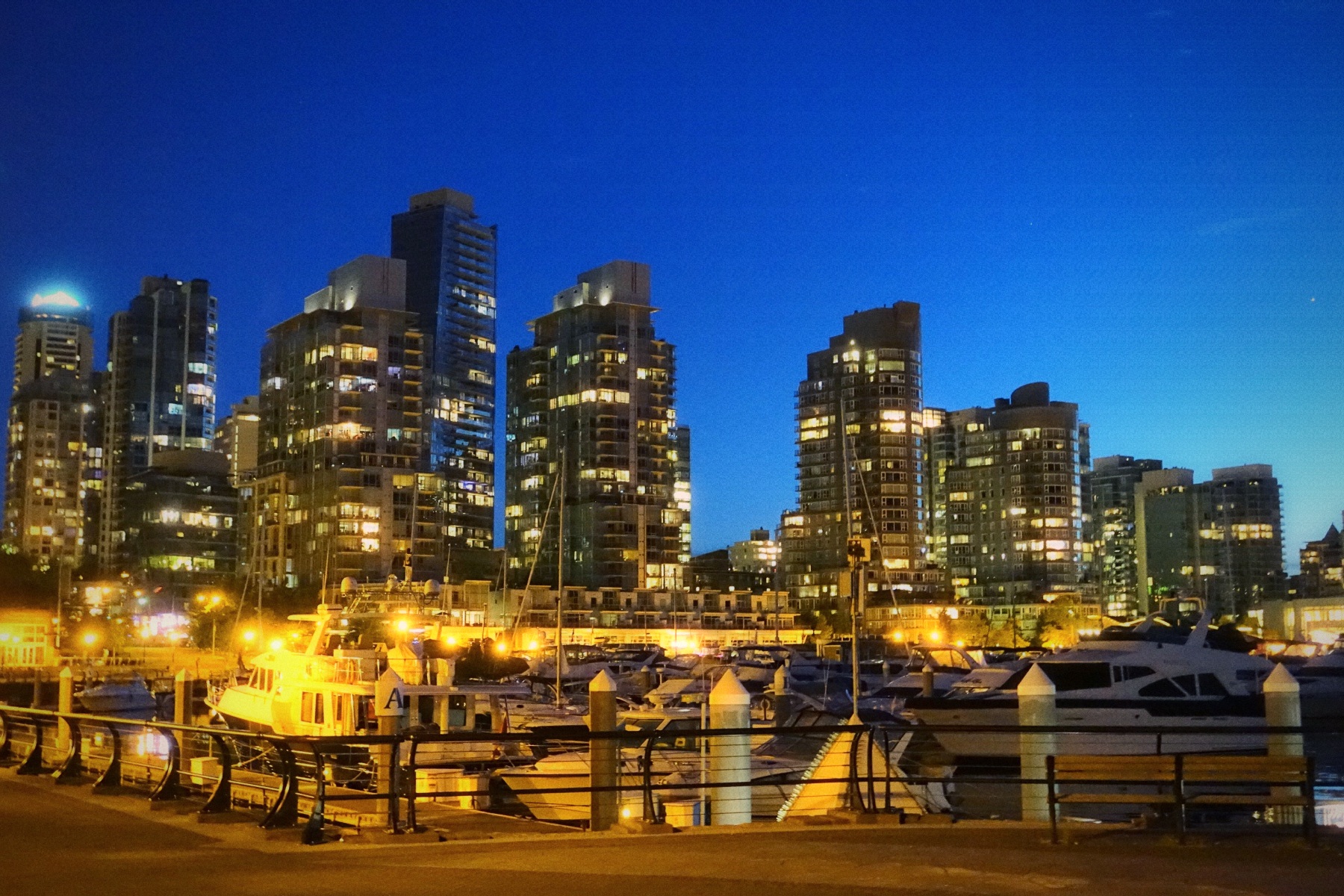
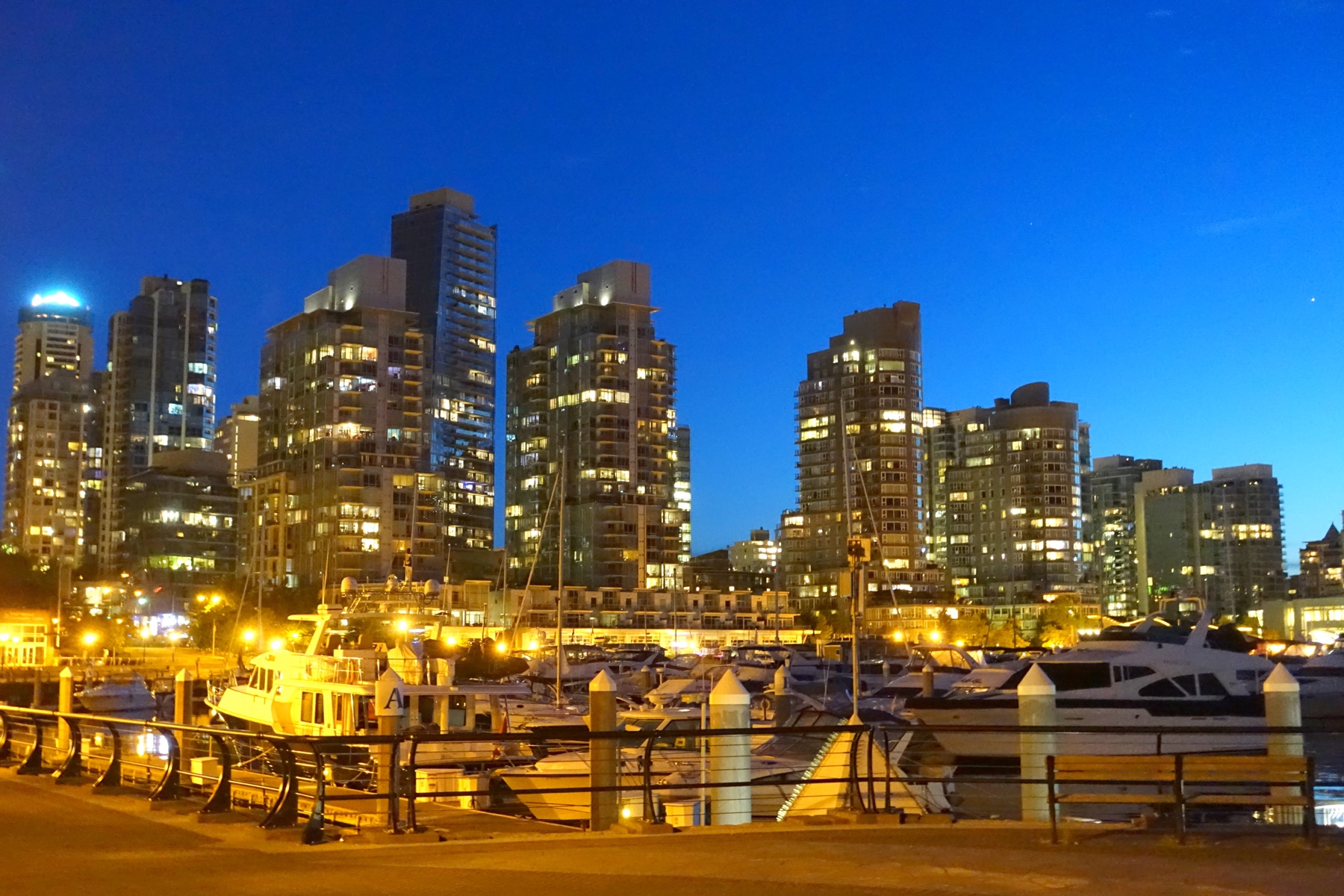 OriginalNocturne
Then choose Replace to use your own photo or clip. New here? Read the photo guide or video guide.
References
Kodak's Essential Reference Guide for Filmmakers, the Film Structure section, explains halation and the light-absorbing role of antihalation layers. Its physical account is distinct from the shader choices described above.